How to Create a Batch File to Refresh Network Settings

Create a bat file
Here we show you how to make a bat file. In the example today we will create a batch file (with the .bat extension) and use it to refresh network settings. If you are an emerging computer tech and you haven’t already become accustomed to using the ipconfig command, you soon will. This command is most commonly used at the DOS prompt to see a computer’s current IP configuration. Using this command with three different switches also allows you to refresh a computer’s network settings which can be very useful when troubleshooting network issues. In the following tutorial, I would like to show you how you can create a batch file that will run this command along with its switches to quickly refresh a computer’s network settings.
Introduction to How to Make a Batch File
Before we get started, it might be helpful for you to first understand what a batch file is. A batch file is a simple text file that can run a series of DOS commands when executed. They can be created using Windows Notepad or any other plain text editor.
You simply enter the DOS commands that you would like to run and save the file with a .bat extension.
You can then execute it by simply double clicking on it.
Learn about Atera?
Just a side note I’m sending out to all Techs. If you are in IT (and if you are reading this page, I suspect you are!) then you could be interested in something I found relevant at the moment, that could help and save you!
It is called ATERA, and it would be great for anyone with a small IT services business.
I advise you to learn more, so click and read more about it here!
Let me know what you think about it in the comments below.
Lets get started on that batch file.
Step 1 – Open a text editor (like Notepad)
Click on the “Start” menu and go to “All Programs”. Go to “Accessories” and open “Notepad”.
Step 2 – Type the text that will create the batch file in Notepad
In Notepad, type in the following commands which will be run to refresh a computer’s network settings.
ipconfig /release
ipconfig /flushdns
and finally:
ipconfig /renew
It should look like this.
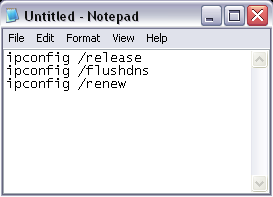
The “release” switch will release your current IP address settings. The “flushdns” switch will flush the DNS resolver cache. The “renew” switch will renew your IP address settings.
Now you are ready for the finishing touches to create your batch file.
Step 3 – How to Create the Bat File
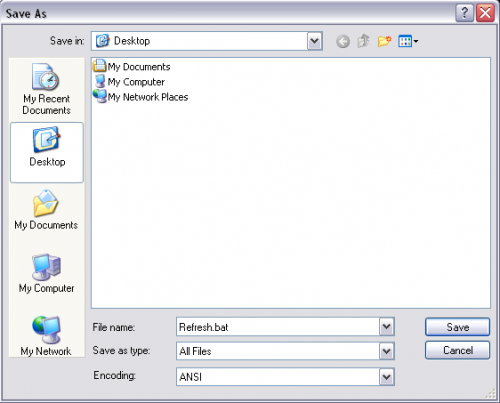
Now click on the “File” menu and select “Save As”.
Change the “Save As Type” field to “All Files” located near the bottom of the window.
Now enter a “File Name” such as “Refresh.bat” without the quotes. This is the important step to make a bat file. It is important that you put the .bat extension on the end of the file name or you will not be able to execute it as a batch file. Choose a “Save In” location and click the “Save” button to save it.
Step 4: Now you can run your new batch file by double clicking on it.

After the batch file has finished executing, the computer’s network settings will be refreshed.
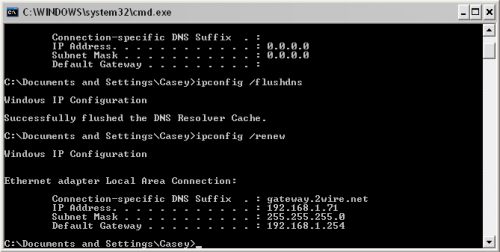
You can put this file on your desktop for quick access or on a flash drive to use on other computers. It can be run on any Windows machine including XP and Vista. Remember, these commands will only work if the computer is set up to obtain an IP address automatically and will not work if the computer has a hard-coded IP address.
If you have any experience using batch files, please feel free to share what you use them for.
Conclusion
We explained what a batch file is, and explained they have a .bat file extension. We showed an example of how you make a batch file to refresh network settings.

25 Comments
Casey
April 6, 2008Wow, thanks for sharing this with us. I created one on my computer and it worked like a charm. I love the menus and even the change of color.
Anonymous
April 1, 2008Thanks to your idea, I created my own file. (I took out the ascii graphics in the Menu’s).
@echo off
title NETWORK RESET SCRIPT
:prompt
color 1f
cls
echo NETWORK RESET SCRIPT
echo.
echo Type r to Reset Network
echo Type p to do a ping test
echo Type c to go to Command Prompt
echo Type q to exit
set /p answer=
if ‘%answer%’ == ‘r’ goto test
if ‘%answer%’ == ‘R’ goto test
if ‘%answer%’ == ‘C’ goto cmd
if ‘%answer%’ == ‘c’ goto cmd
if ‘%answer%’ == ‘q’ goto quit
if ‘%answer%’ == ‘Q’ goto quit
if ‘%answer%’ == ‘P’ goto ping
if ‘%answer%’ == ‘p’ goto ping
pause >nul
:test
cls
echo —————————————————-
echo – RELEASING IP…. –
echo —————————————————-
ipconfig /release >nul
echo.
echo Done!
echo.
echo —————————————————-
echo – RESETTING IP LOG… –
echo —————————————————-
@netsh int ip reset C:WindowsTEMPIPRESETLOG.txt >nul
echo.
echo Done!
echo.
echo —————————————————-
echo – FLUSHING ARP TABLES… –
echo —————————————————-
@arp -d >nul
echo.
echo Done!
echo.
echo —————————————————-
echo – FLUSHING DNS… –
echo —————————————————-
@ipconfig /flushdns >nul
echo.
echo Done!
echo.
echo —————————————————-
echo – RENEWING IP… –
echo —————————————————-
@ipconfig /renew >nul
echo.
echo Done!
echo.
cls
echo —————————————————-
echo Heres Your Status: –
echo —————————————————-
ipconfig /all
echo.
echo Press Any Key to Go To Menu
pause >nul
goto prompt
:ping
cls
echo —————————————————-
echo Starting Ping Test… –
echo —————————————————-
echo.
ping google.com
echo.
echo Press Any Key to goto MENU
pause >nul
goto prompt
:quit
cls
echo Thanks For Using The Network Reset Script
pause
exit
:cmd
@color 7
cls
cmd
@echo on
Daryl
March 29, 2014Sir can you teach me how to send a batch file to a computer using internet and from that computer it will send a copy of itself to its network like a virus?
Yamaha
September 11, 2008This is wonderful. Thanks fellas.
sandeep
December 17, 2008This is great … it works wonders…
ramesh
January 7, 2013sir,
i have one PC having two LAN Cards one connected with Broad Band (having IP 192.168.1.2 subnet 255.255.255.0 gateway 192.168.1.1 ) and other with intranet (IP 10.68.111.70 subnet 255.255.252.128 gateway 10.68.111.1) now i want to access BB from other IP of Intranet (Say IP 10.68.111.42 ) what BAT file i have to use on 10.68.111.70 for accessing Broad Band from 10.68.111.42 can u suggest me
Rav
April 16, 2009Hi I have copied the above script and created .vbs file when running the file i get Windows Script Host error
Line: 1
Char 1
Error: Invalid Character
Code: 800A0408
Source: Microsoft VBScript compilation error
Can you help please?
Rav
April 16, 2009I have solved the issue. saved file as .BAT and it works… Doh!!!!
Cheers mate.
ramesh
January 7, 2013sir,
i have one PC having two LAN Cards one connected with Broad Band (having IP 192.168.1.2 subnet 255.255.255.0 gateway 192.168.1.1 ) and other with intranet (IP 10.68.111.70 subnet 255.255.252.128 gateway 10.68.111.1) now i want to access BB from other IP of Intranet (Say IP 10.68.111.42 ) what BAT file i have to use on 10.68.111.70 for accessing Broad Band from 10.68.111.42 can u suggest me
mukesh
January 18, 2010hello sir i m using two ip address in one machine
so how to create a bat file & how to create a diffrent ip address in bat file pls sent my email id
Psycho-Smiles
May 13, 2010cmd /k ipconfig /displaydns to display DNS
cmd /k ipconfig /flushdns to flush DNS
make 2 seperate bats so you can see your recent activity if you want to without it wiping your DNS out first
save as DNS.bat etc
HeyItsTman
August 19, 2010Thank You very much, I no dont have to walk my little peoples through this operation anymore. Saved time and energy.
Thank You!
ramesh
January 7, 2013sir,
i have one PC having two LAN Cards one connected with Broad Band (having IP 192.168.1.2 subnet 255.255.255.0 gateway 192.168.1.1 ) and other with intranet (IP 10.68.111.70 subnet 255.255.252.128 gateway 10.68.111.1) now i want to access BB from other IP of Intranet (Say IP 10.68.111.42 ) what BAT file i have to use on 10.68.111.70 for accessing Broad Band from 10.68.111.42 can u suggest me
Roger
January 15, 2011It’s also useful convert batch file to exe prior to use, I made it with help of Dr.Batcher ( http://www.drbatcher.com ).
manoj
July 11, 2011Hi Friends,
I have problem with My ERP server i want to only repair my network setting what can i do? give me .bat file for this this is my ip
10.x.x.x -ip
10.x.x.x -ip
10.x.x.x -ip
10.x.x.x -ip
10.x.x.x -ip
[5 IP for one LAN card]
255.x.x.x -subnet
10.x.x.x -Getway
10.x.x.x -Getway
2 getway for one LAN card
x.x.x.x -DNS
x.x.x.x -DNS
x.x.x.x -DNS
please give me .bat file for repair[right click Ethernet option & repair] in 15 min daily. 24×7
Janice Stevens
November 14, 2011I have an issue with DNS zone. Each day is fails and I have to reload the zone. Can I create a bat file to reload 1 DNS so that I can schedule it as a task.
Rob
October 16, 2012it just baffles me how simple and powerful batch files can be… Thank you
Snoopy
November 12, 2012Thanks for this. It was really useful yet simple to do.
Paul
February 26, 2013Thank you!
D
October 2, 2013Release, flush and renew.
Can anyone explain why I’d want to execute each of these functions.
Thanks In Advance
jg)habtamu endris(ethiopia[bahirdar
June 20, 2014first you have to chang your computer type or ode and connect ur computer or make it compactable
jg)habtamu endris(ethiopia[bahirdar
June 20, 2014hi just again how to know some one was been see your file by ip addressee and how to get him address?
\
feedmebro
July 24, 2014ive created a batch file chat . but it only works lan how can i make it through internet not lan?
Leave A Response