RAM Information Tools
With so many different types of RAM these days, purchasing a memory upgrade is not as easy as it used to be. Since there are so many different types, you will want to make sure you know what you need before you place your order. I would like to show you some quick ways that will help you to determine RAM type without even cracking the case.
Windows RAM Identifier
If you are running Windows you can download an app called System Information for Windows (this link takes you to a site you can download it from).
SIW audits your computer and gives you detailed information about your computer configuration. Although it has a wide variety of uses, it is great for getting information about your memory.
Standalone Memory Identifier
SIW is a standalone app so it can run from anywhere on your computer and even from your USB flash drive. To see your memory information, run SIW and click on “Memory” in the left hand menu.
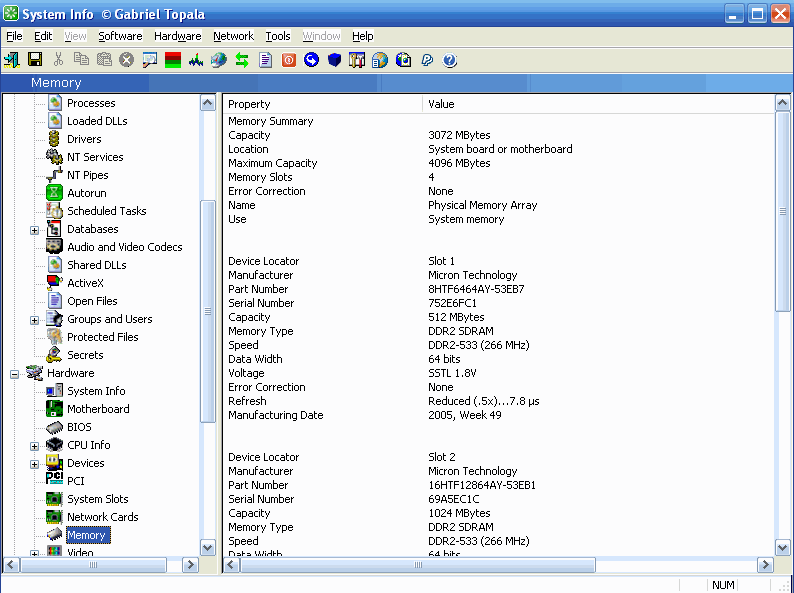
SIW is a standalone memory identifier
Other options to check memory type
Another way to determine your memory type is to use the Crucial Memory Advisor Tool located at Crucial.com.
An alternative is the Kingston Memory Search Tool at Kingston.com. These tools allow you to either search by the computer manufacturer or by your motherboard manufacturer.
They also give you additional information like the maximum amount of memory you computer can use or how many memory slots your motherboard has. Even if you don’t want to purchase the memory from these sites, you can still use these tools as a reference to determine what type you need.
So there are several options to perform a memory type check. If you know of other ways to check memory type or possibly even an easier way please feel free to share your thoughts.

19 Comments
ZoranZ
February 19, 2007Very usefull
Daniel
August 2, 2007How about using cpuz, a very nice tool. I even have repackaged it so i can run it directly from my u3 smart drive
UNKLD
August 2, 2007Also try- Create a new txt file on desktop, rename it” anything.nfo- (computername.nfo) open nfo file and there you have all the info about that PC that you need. I do this on any new server I set up and leave it on the desk top. if you add memory or anything- it will update when you open it
D
x
August 2, 2007That *.nfo file trick is interesting, though it would have been nice to have a little warning about the whole “possibly corrupt file or unrecognized version” warning box that pops up.
Even so, a useful little thing to have.
Ayal
September 3, 2007You could directly run msinfo32…
Scott Trenda
September 28, 2007Accessories -> System Tools -> System Information. Bing bang. 🙂
David
May 13, 2011Haha, awesome! I love how the users always have the best methods, and I love all the other alternatives and work arounds. However, the tool is simple for non-techies as it singles out only the RAM in question. But that’s not me 🙂
Thanks guys!
Darrell
October 24, 2012Scott… don’t respond if you don’t understand the english language. Type of memory refers to ddr3 etc. The op isn’t asking how much he wants to know what type. Your reply is of no help.
Princess Lowstetter
January 21, 2009Great, thanks!
Greg Rundlett
September 14, 2009on Linux,
sudo dmidecode -t 17
To get a nice printout showing how much memory is installed do this (all one line):
sudo dmidecode -t 17 | awk ‘/Size:/ { if ($2!=”No”) memtotal+=$2 } BEGIN { memtotal=0 } END { print “Total memory: “memtotal” MB” }’
Mr.Aung
December 26, 2009I cannot find to download link of this software. Please show me. I want to get this software.
Thanks
Casey
December 27, 2009You can get there by clicking on the link entitled “System Information for Windows” in the article or you can go directly to this website. http://www.gtopala.com/
Cathie
May 10, 2010Hi, this is wonderful…wonderful blog. Thanks.
Repair Man
November 25, 2010Speccy is one of the better free products these days which allows you to find out a whole host of information about your machine (which having to open it up). It is created by Piriform – the same guys behind CCleaner and Defraggler so I believe it is a reputable program as well.
Calgary computer repair
December 5, 2010I would also recommend CPU-Z. I have used it for quite some time and it is extremely easy to use (even for the computer newcomer).
Dorius
January 27, 2011How i can know what my memories type i have like 512 RAM DDR2 or SD RAM
Jumanji
July 14, 2011How i can know what my memories type i have like 512 RAM DDR2 or SD RAM????
Brent
September 20, 2011Looks like even though gtopala still lists a freeware version, there is no way to download the freeware version. I have been all over the sites pages that concern SIW and can’t find a freeware download.
Dustin Mitchell
November 4, 2016Great! Thank you. I have just saved some time with a simple search.
Leave A Response