 Copy Windows Drivers from One Computer to Another
 Copy Windows Drivers from One Computer to Another
In the following tutorial I would like to show you how to backup Windows drivers so you can copy them over to another computer or restore them back onto the existing computer. This can save you lots of time, especially after a reload. You can also use this same process to backup Windows drivers so you can add them to your Windows unattended installation CDs.
Step 1: Download DriverMax
Download and install DriverMax on the computer you want to backup drivers from.
Step 2: Launch to Export Drivers
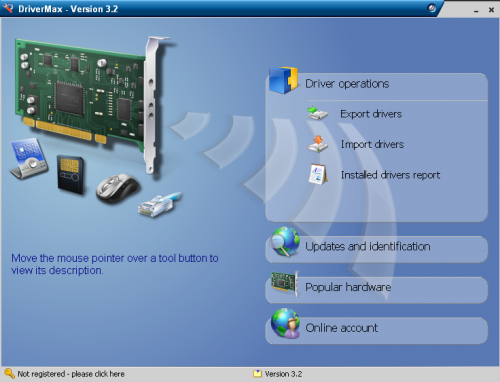
Under the “Driver Operations” menu click “Export Drivers”
Step 3: Use export wizard
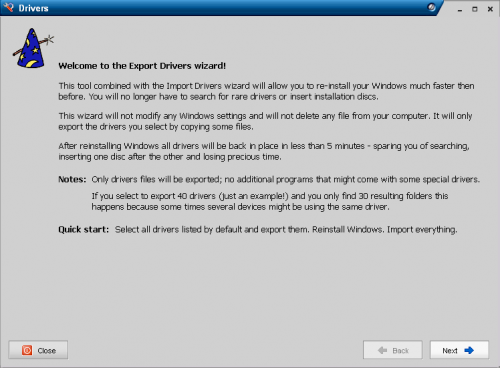
The export wizard will now launch. Click “Next”.
Step 4: Select Driver(s) from list
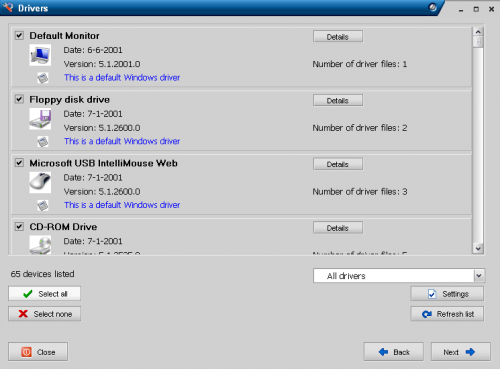
You will now see a list of all of the current drivers installed on the computer. You can either individually select the drivers you want to backup or you can click “Select All”. When you make your selection, click “Next”.
Step 5: Select location to save
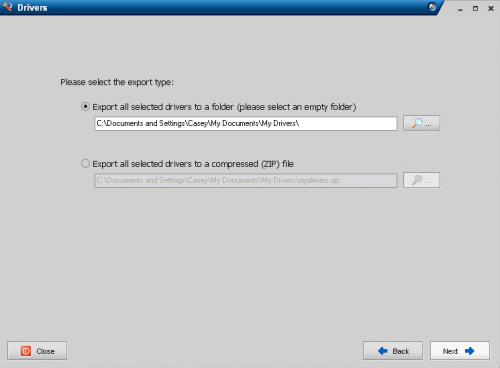
Select your backup location. DriverMax will put each driver in an individual folder. When you are ready to start backing them up, click “Next”.
Step 6: Select to Import
You are now finished backing up your drivers. If you would like to import them onto your computer or another computer, click “Import Drivers” from the “Driver Operations” menu.
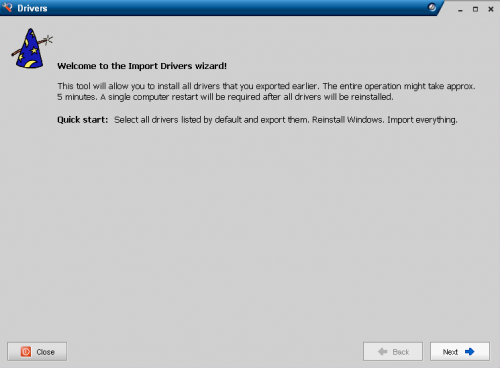
Step 7: Navigate The Import Wizard
The import wizard will now launch. Click “Next”.
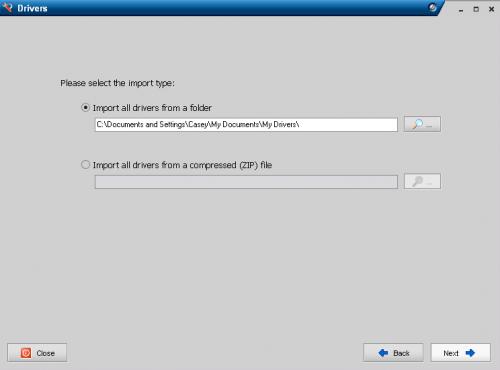
Step 8: Choose the location of the drivers
Choose the location of the drivers you would like to import. Click “Next”.
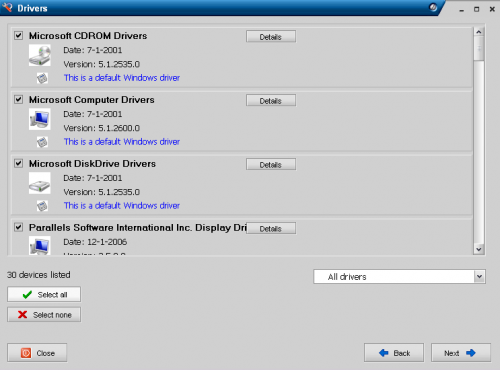
Step 9: Select the drivers you like
Select the drivers you would like to import. You can also select all of them by clicking “Select All”. When you have made your selection, click “Next”.
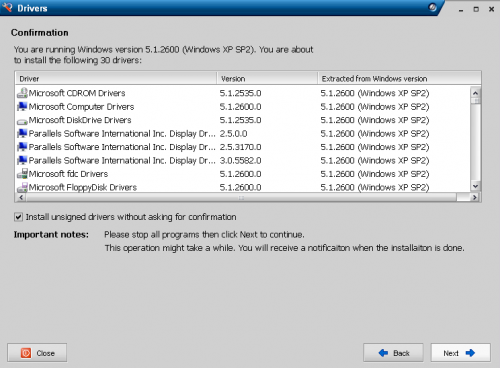
Step 10:Review and Import
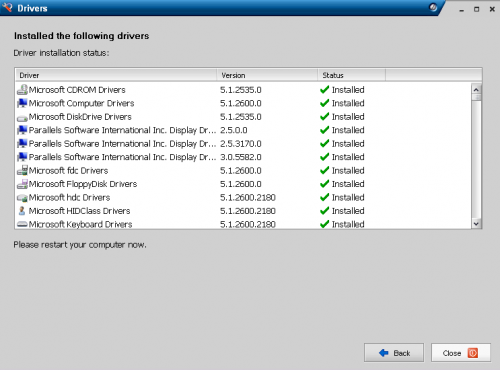
You will now see an overview of what you will be importing. When you are ready to import them, click “Next”.
Step 11:Review Results and Restart
You will now see the import results. Click “Next” and restart the computer.
If you have any experience backing up and restoring drivers please feel free to share.

14 Comments
Anonymous
December 24, 2007I have never come across this application, this seems a great way to back up your drivers. Does it work very well?
Regards.
Jsanderz
http://www.informationaddicts.com
Majid
May 16, 2009I really tried on Win XP servcie pack 2
3.0 GHZ
1 Gb ram
Gigabyte mother board
BUT
It’s STUCK, during reinstalling the drivers, and some didnt work like sound drivers, u have to setup realtek HD audio driver even reinstalling drivers with This app.
Look for some beeter app
Bruno
June 13, 2009Nice tutorial. I hope I don’t need to completely replicate all my drivers. If I do, I will know where to look first.
Bmatty
February 22, 2010I installed the software, but could not get it to work. the driver operations option doesnt show. The instructions shows the driver operations button, but this doesnt show in the actual program.
Melen
June 24, 2010My computer started to show symptoms of possible registry problem. I neede to do someting about it before the condition worsen. I found an edit windows registry help materials that guided me through the rest of the process. After the procedure my computer lost it’s hardware drivers. My drivers’ CD is already broken but it was agood thing that my friend has similar computer specifications with mine. We downlaoded DriverMax and followed this article instructions. After a few minutes all my hardware devices were all up and working again.
ahmad
July 20, 2010thank you for this site
rajul singh
May 10, 2011how to crack pc password
eh
May 30, 2011Use Offline NT to reset forgotten Windows passwords.
double glazing sash windows cost
January 30, 2013Oh my goodness! Impressive article dude! Thank you so much, However I am going through problems with your
RSS. I don’t know the reason why I can’t join it.
Is there anybody else having the same RSS problems? Anybody who knows the solution will you kindly respond?
Thanks!!
Casey
January 31, 2013Hello,
What problem are you experiencing with the RSS feed? I just checked it and it’s working fine for me.
Christina Jones
February 15, 2013this is not the website that i like because……………………. my computer disk wont work
Christina Jones
February 15, 2013im just playing its the best
Christina Jones
February 15, 2013i loooooooooooooooooooooooovvvvvvvvvvvvvvvvvvvvvvvvvvveeeeeeeeeeeeeeeeeeeeeee this now
Wanlam
September 7, 2016Driver Talent gets drivers for other laptops, notebooks, or desktop PCs. You can download all drivers including network drivers, WiFi drivers, Ethernet drivers, Bluetooth drivers, display/graphics drivers, sound/audio drivers, printer drivers, motherboard drivers, keyboard & mouse drivers, USB drivers and more.
Leave A Response