Windows Update Downloader software and Usage guide!

Not all that long ago, I was faced with a situation where I had an automatic update that wouldn’t install. To try and troubleshoot this issue, I needed a way to download the update so I could perform a Windows 7 manual update (note it works for several other versions of Windows too – see the list below). Since Microsoft doesn’t offer such an option, I had to look elsewhere for help. Luckily, there is a program that was created to do just this. Just note this really is a process for Computer Techs or those confident with their own computers, although it is simple if you follow the steps below. Read on below.
The Software We’ll Use is Windows Updates Downloader (WUD):

This installer helps you manually install Windows updates. It saves manually downloading each of the installs individually, which used to be required. It is an essential part of my step-by-step guide, and you’ll use it and learn how to do it yourself. It’s also great to use in conjunction with a Windows Vista Unattended Installation CD and Windows XP Unattended Installation CD so the updates are installed with the OS.
It works for:
- Windows 7,
- Windows 8,
- Windows Vista,
- Windows XP,
- Windows 2003 Server,
- Windows 2000,
- Office 2003, and even
- Exchange 2003.
Just follow the steps below to get started.
Did you notice the glaring omission? Go to my new article to see how to download Windows 10 updates manually.
Step 1: Get Windows Update Downloader
To navigate to the downloader website, click on the following link to find and Download Windows Updates Downloader. You may notice the website is not pretty, but it is effective – and that is all we need. Once on the website, identify the appropriate one for your needs by reading the text carefully. The download ‘buttons’ are set as gold colored text lines.
So once you’ve identified the version you want, prepare to download the executable file. The last time I checked, the most up to date version is build 2.50. This is immensely popular software with hundreds of thousands of downloads for Version 2.40 and over a million downloads for Version 2.50. Wow! That’s impressive don’t you think? (I’d like to think I’ve sent a lot of these happy ‘customers’ to them.)
Just be sure to download WUD first, then run it once before you download the update lists you want to use.
Step 2: Download the Updates List
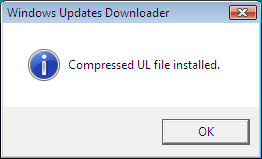
You can navigate while on the page, via the gold menu beneath the banner. Or you can simply click on the following link to find and Download the List for the product you wish to download updates for. Reading through the table you will see the windows products listed in the first column, along with the service pack number and then the platform (that is x64 or x86). You can double click it to automatically import it. When it has been installed it will give you the following message saying “Compressed UL file installed”.
Just be sure to download WUD first as stated in Step 1 above. Note: make sure you put the Updates Lists in the same folder as the Windows Update Downloader folder (this should happen automatically when you select to open the UL). These two things when followed, may address some of the issues I’ve seen listed in the comments beneath this article.
Step 3: Open The Program and Select Files
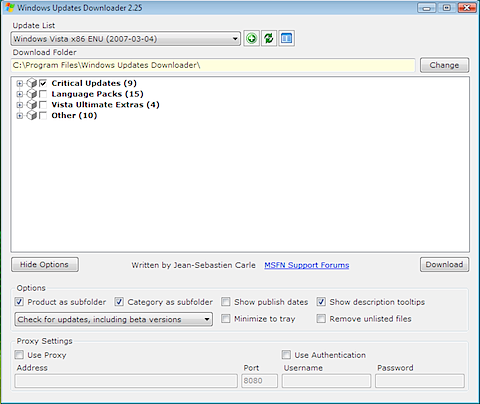
Open Windows Updates Downloader and select the updates you wish to download. You can change the location in which the updates are downloaded by clicking “Change” next to Download Folder (see the screenshot below). Click the “Show Options” button and select “Product as subfolder” to separate the downloaded updates into sub-folders based on the product name. This makes them much easier to sort through if you are downloading updates for multiple products.
Step 4: Download Updates
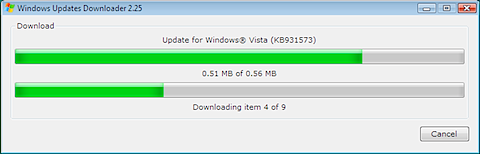
Click “Download” to start downloading updates. You will see the progress bars indicate the progress through the process for each item, as shown below. It won’t take particularly long (although as you can guess, it depends on the file size).
Step 5: Retrieve Your Updates
Once the updates have finished, you can navigate to your download folder to retrieve your updates.
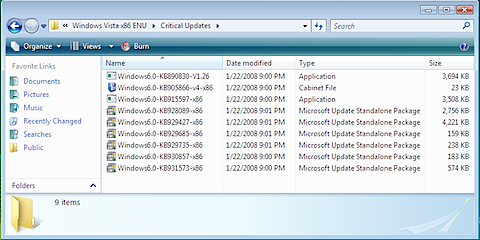
You are now ready to install the updates with a simple double click to run. If you have any experience with downloading Windows Updates manually, please feel free to share in the comments below to give feedback and to help others.
And how to install?
Well as you see I believe you should be able to double click to run, but some don’t actually have success with this, not sure why (hey even the best of us can’t know everything about everybody else’s systems!). Note in case you are in that situation (and sorry if you are), to do it from here if it will not install with a double click, the Windows Updates Downloader site recommends you use another program called nLite to actually install the updates. If you have trouble with this please put a note about it in the comments below, for others please also note how you overcome it. It is worth a try, and then you might be able to help others. Note the comments below are moderated.
Hence (due to the above issue some experience) some say it is not a convenience tool. Well it is pretty bare and simple, I grant you that, but it does do the job for me, even though it does require you to do a little more management of it. But for most techs and computer savvy people this will be convenient enough.
Summary of How to Download and Install Windows Updates Manually
So that is how you can get out of trouble when Windows updates won’t install automatically. My issue was to perform a Windows 7 manual update, but as you can see above it also works for many other versions of windows, including Windows 8, Windows Vista, Windows XP, Windows 2003 Server, Windows 2000, Office 2003, and even Exchange 2003. This software is very popular and has helped a lot of people over the years (including me!) with well over a million downloads. The above guide shows a few tricks to make using the software easier.

44 Comments
Anonymous
February 16, 2008So, is this an Autopatcher clone?
Casey
February 16, 2008Actually Autopatcher is more like Offline Update which I wrote about here. http://www.emergingtechs.com/posts/how-create-windows-offline-update-cd
R. W. Ragan
February 11, 2009Casey:
I am unfamiliar with the “.ashx” extension on the downloaded file. What is the procedure to install this file type?
Thanx!
Casey
February 12, 2009Hi R. W. Ragan,
The website that contains the Windows Update Downloader has a .aspx extension because it was coded in ASP.NET. http://en.wikipedia.org/wiki/ASP.NET If you are unable to view this site then your browser must not support ASP.NET. I would recommend downloading the latest version of Firefox or Internet Explorer. Hope this helps 🙂
-Casey
gregory sanchez
May 31, 2009i have a virus that disables my update, and i need this program, but i have Windows Vista Service pack 1 32x Bit, so do i choose 86x or 64x?
Utkarsh
April 1, 2015x86 is yours
Bill
June 10, 2009on this lets say you started with windows xp sp1 then you upgrade to sp2 then to sp3 and you missed a few updates for sp1 & sp2 here and there. would you have to download both od the Windows XP Service Pack 2 & Windows XP Service Pack 3 Update Lists (ULs) or just the latest 1?
Casey
June 17, 2009You should be able to get away with just installing Service Pack 3 plus any updates that were released after that.
banana.beach
June 19, 2009Thanks a lot for this guide.
John
August 29, 2009i have a question
i have a Xp sp2 32-bit, will it work if i use the 64-bit list?
Donald
October 23, 2013No, it wouldn’t; only use a Windows Update 32bit list. If you don’t the patches for 64bit systems would tell you that the patches you get are for a different version of Window.
Regards, Donald
Jeanine
September 1, 2009Thank you so much! i have been fighting with Microsoft for months over my updates not working. Everything on the net tells me to run them manually but i never figured out how until I came across this site. Thanks again!
vimal
April 17, 2010good work keep it up….
Jim H
May 17, 2010Is this still an option ? I cannot get to your website to download the installer…
http://wud.jcarle.com/ProgramFiles.aspx
Casey
May 18, 2010Hi Jim,
The site works for me. Just click on the download link on that page.
batman
September 17, 2010Im operating windows vista SP1 with dual amd 64 bit processor. For some reason my windows update stopped working a while ago and I haven’t been able to dl updates for years now. I followed the instructions for this manual install but whenever i click on the downloaded update installs for the x64 SP2 updates (including critical updates, IE updates etc) ALL of them say that the update doesn’t apply to my system. I tried DLing the x82 files and they are exactly the same. Any way around this???
Joy
September 23, 2010If There Any Way To Download Updates For Windows 7???
utkarsh
October 5, 2010thank u for demonstrating clearly wat s 2 b done…
saeid
October 11, 2010It was excellent thank u very much
Brother
May 2, 2011@Joy:
http://windows7themes.net/how-to-install-windows-7-updates-manually.html
@Blogger:
Thank you very much for this suberb article! A friend of mine couldn’t update through Windows Update, it always said “error code 80070246”. Hope this will work out well!
Juanska
May 24, 2011Hopefully this works.
Juanska
May 24, 2011Yeah. It’s not working.
naz
June 25, 2011u are really a God sent.thankx alot,this info really helped.
Josh
November 2, 2011Link to download isn’t working. Please help.
Casey
November 2, 2011The links have been fixed. Thanks!
Curious Apprentice
January 3, 2012Hey can you tell me what is the advantage of offline update over online updates ? Can I apply offline updates on a pirated copy of win7 ?
mishal gul
December 17, 2012i got the error “remote name could not be resolved”
puski
January 8, 2013windows update on my laptop does not respond. it says some error .is there a way to resolve this?sometimes it even does not open . i had to open task manager and restart my windows 8 (32 bit) to close control panel.
fazil
January 22, 2013i would like to know how to update my regional language, its show only us i need the arabic regions, could u pls help me to solve this problem
MDF
April 5, 2013Get Work and Info!
I have downloaded a ton of updates but do not want tospend the time it takes to double click each one to install it. Is there a way to install them all together in one process?
JR_Richards
June 28, 2013Is there a program for windows server 2008. I can’t give that server internet access.
Thanks!!
Lorraine
July 17, 2013This was really helpful. thanks alot
Jayson
September 14, 2013Thanks a lot, saves me a lot of time and effort..
Clint
September 23, 2013Is there a way to install all the downloaded updates with one batch command? I’ve seen this somewhere but haven’t been able to find it again. Clicking on all 137 updates for XP takes forever!
Jason
March 24, 2014I understand the updates can be installed one file at a time…but my question is much like the one that Clint asked on September 23, 2013. Are there ANY way to install the updates at once? Much like Clint, I have over 100 files to install and doing it manually one by one takes a lot of time. Please help!!
Sureshbabu
February 24, 2015Hi Win2008 & win2008R2 any offline update pack available
Hydar Al-Tayr
July 9, 2015Dear Publiser & Developer
I am really thankful for your application it is solved alot of problem and saved my time.
Thanks for that keep on
Hydar from Sweden and Iraq
Thomas
September 30, 2015Surprised this still works so well, Thank you for keeping the updates up-to-date. Made life easier with a Offline Virtualbox (window 7 pro) and getting the latest updates.
Jackie
November 2, 2015I downloaded security updates. When I clicked on several of them each one said “this update is not compatible with your computer”. I also tried downloading NLite which is recommended on WUD website. Nlite didn’t recognize any of the files I downloaded.
Sure wish I could get this to work. I have hundreds of updates to do.
Allan
June 19, 2016Is there a “back door” way of upgrading from XP … Without doing a complete installation , I’ve tried and succeeded on making a win10 disk for my laptop, but apparently you cannot use it in any machine ??
king
August 2, 2016hie there l want to create a shared folder that will contain Win7,8 and 10 updates then share it over a LAN network. what can l use to download updates and will this shared folder automatically install updates.
anant
September 6, 2016how to install the updates downloaded through WUD all at once rather than clicking and executing each one by one???
raheem
December 5, 2016CAN I INSTALL IT ON MY LAPTOP SPEC ARE 1.73GHZ AND 1.99GB RAM AND INTEL PATIAM M PLZ TELL
sandeep
June 9, 2017Really a very nice article!! Thank you for sharing this relevant information on Windows updates!I would also like to recommend http://www.desktopsupportpanel.com/windows-security-updates
Leave A Response