 Keeping track of Microsoft licenses can be a daunting task when you manage a network with multiple computers. This can be especially true when you are given the task of inventorying computers on a network that you personally did not set up. You could go to each computer and inventory it individually but this could take lots of time depending on the amount of computers. Or, you could use a free program that will scan each computer on a network and do this for you.
The Microsoft Software Inventory Analyzer will scan a network and give you a report of which Microsoft products are currently installed on each computer. You can then use this report to figure out how many licenses you will need to purchase or how many extra licenses you have. In the following tutorial, I would like to guide you through the step by step process of using this tool.
Before We Begin:
Download and run the Microsoft Software Inventory Analyzer.
Step 1:
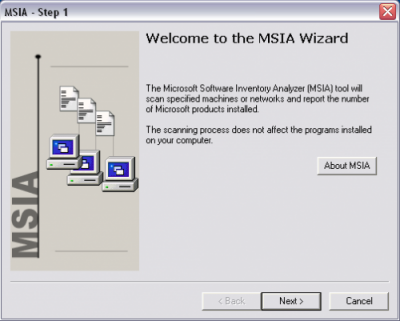
After you run the program, you will be presented with the welcome screen. Click “Next.”
Step 2:
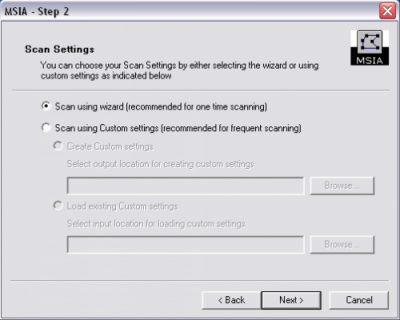
You will now choose your scan settings. You have two options. You can choose “Scan using Custom settings” if you plan on scanning the network frequently or “Scan using wizard” for just a one time scan. For now lets just choose “Scan using wizard.” Click “Next.”
Step 3:
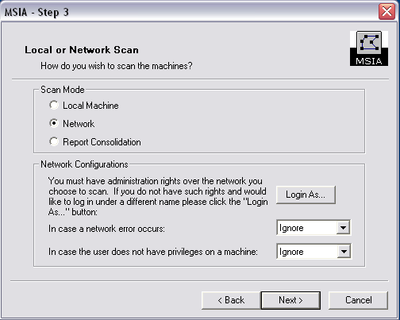
Next you will choose the type of scan. Choose “Network” to scan a network. If you are not logged into the network with administrator rights then click “Login As…” to put in your username and password. Click “Next.”
Step 4:
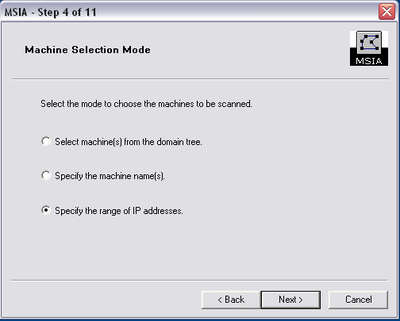
Now you will choose which machines on the network to scan. For this tutorial, I am going to select “Specify the range of IP addresses” because not all of the computers on this network log into the domain. Click “Next.”
Step 5:
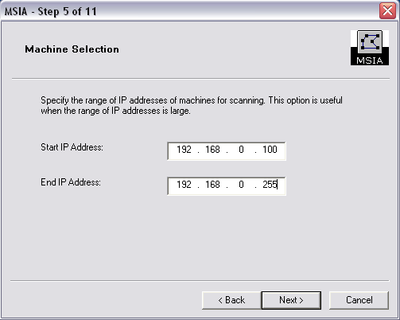
Now enter the range of IP addresses that you want to scan. When finished, click “Next.”
Step 6:
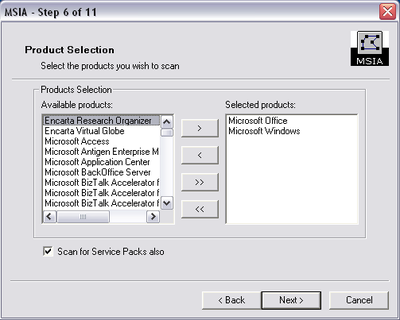
Now you will choose which types of Microsoft products you want to scan for. You can choose individual products are all Microsoft products. When finished, click “Next.”
Step 7:
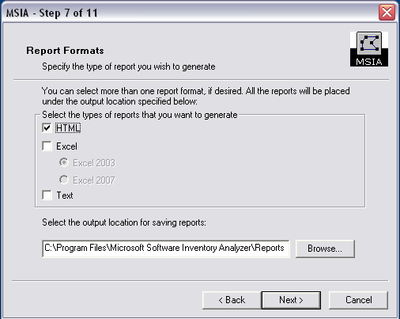
Choose the type of format that you want to generate your report in as well as where you would like the report to be saved. Click “Next.”
Step 8:
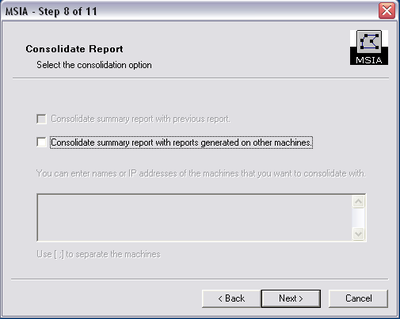
You now have the options of consolidating this report with other reports you have generated. Click “Next.”
Step 9:
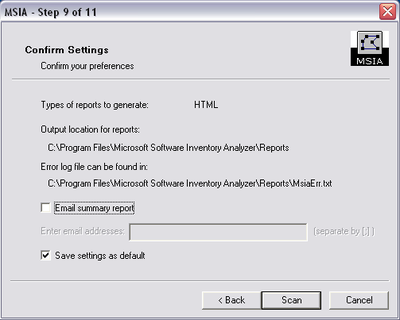
You will now confirm your settings. You can even have the report emailed to someone including yourself if you like. You can also save these settings as default settings so they come up next time you run MSIA. When finished, click “Next.”
Step 10:
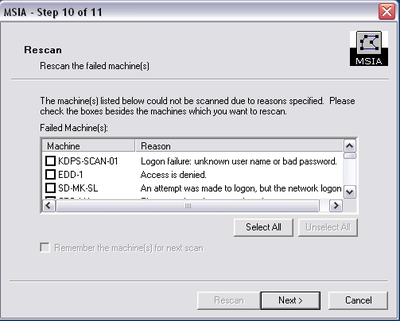
MSIA will now scan the computers on your network for the Microsoft products you specified. When the scan is finished, you will be presented with a list of machines that MSIA failed to scan and the reason why it couldn’t scan them. You can attempt to fix the problems with the machines and rescan them by selecting the check box next to them or skip them by just clicking “Next.”
Step 11:
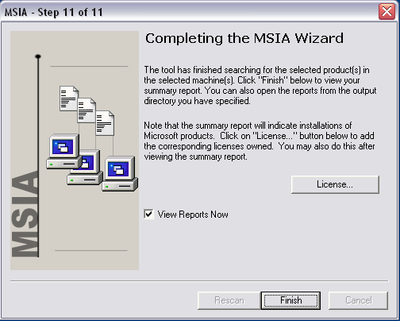
Your scan is now complete. Click “Finish” to view your report.
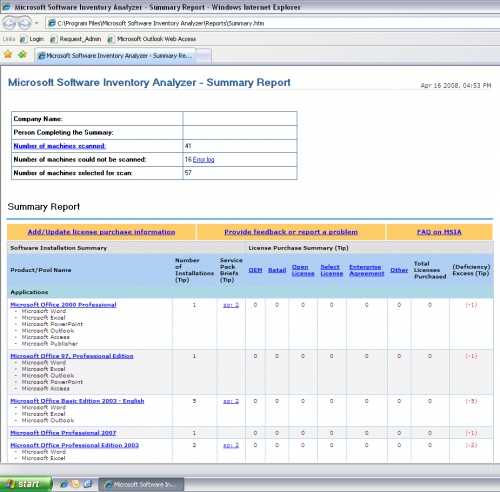
You will now see a report of all the Microsoft Products you scanned for that are installed on the computers on the network. By default, MSIA will tell you that each product has a license deficiency until you tell MSIA how many licenses you own. MSIA will even tell you which Service Pack is installed so it can also aid you in discovering which machines need updating.
Feel free to share your experience with MSIA or any other similar programs.

10 Comments
Anonymous
May 2, 2008Thanks for posting this. I found this via StumbleUpon and actually have to audit about 200 machines this weekend. This method will make it much easier.
Thanks!
Jose
July 14, 2010it makes me wonder if these tool sends some kind of information to Microsoft…
Giddi
November 3, 2012That was the first thing I thought too…
Tom
April 10, 2013If it were a Google or a facebook product I’d say deffo, but because Microsoft dont rely on info sniffing as much I’d say the possibility is lessened.
Of course I could be wrong and MS might have a cloud somewhere hoovering up all of our licence scans =)
Tim
April 30, 2013Nope, there’s no such problem.
“The MSIA will located only Microsoft software. However, the results of the scan performed by the MSDIA are completely confidential and are not sent to Microsoft.”
Sunny
March 21, 2015How accurate is this?
Will microsoft audit guys will have big guns than this?
What if software is uninstalled or window is reinstalled?
Scott
September 23, 2016Yes Microsoft have MUCH bigger guns than this.. this tool is really only useful for desktop apps. It won’t show you anything about your virtual environment, SQL Server, server apps etc. basically where all your license costs are really tied up.
A better option is to use Microsoft MAP toolkit (free) and a service like AssetLabs Engage to determine your license compliance. You need license experts to really determine your entitlements, no software solution can do it all.
Trinna
June 3, 2015Doesnt work
It gathers the software inventory but nothing appears for Product ID
Jim
October 5, 2015I found the product completely lacking in its scanning. I ran a scan on my local machine twice. I have a Lenovo laptop running Windows 7 Enterprise. The first scan didn’t report anything. The second time, it came back and it found my laptop and the correct OS…That’s it. No mention of all of the microsoft office products,etc. Didn’t list the product ID either! Very disappointing.
StrangerJack
November 9, 2016I prefer to use my network pc audit http://www.softinventive.com/pc-audit/
(Total Network Inventory from Softinventive) tool. You can try to use freeware option like Spiceworks but it crashes sometimes and has ads.Though article is good but if dont want to waste time i suggest to use some of the software tools to make your life easier..
Leave A Response