 I was recently faced with a situation where someone had used a “leaked” product key when setting up some Windows machines that I now manage. Not only did the computers start receiving very annoying error messages every time they started up, but they were also unable to receive Windows updates. To fix this, I was able to use a very simple utility to change all of the keys quickly without having to reload Windows or edit the registry. In the following tutorial I would like to show you how to do the same.
The utility that I used is called WinKeyFinder application and is self contained in a single exe file. And the best part is that the program can run directly from your usb flash drive.
Step 1: Download WinKeyFinder and extract it.
Step 2: Next, run WinKeyFinder and you will see your current Windows Product Key. I have blurred out the one below for security reasons. [Note WinKeyLite is no readily available – Ed]
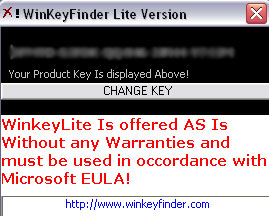
Step 3: Click the “Change Key” button and you will now be able to change your product key.

Step 4: Type in your new valid product key and click “ChangeKEY”. If the change is successful you will see this dialog box with your new product key. Click “OK”.
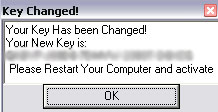
Step 5: Now reboot your computer for the settings to take effect.
Windows Vista also has a built in feature that allows you to change the product key. If you would like to use this feature instead follow these instructions.
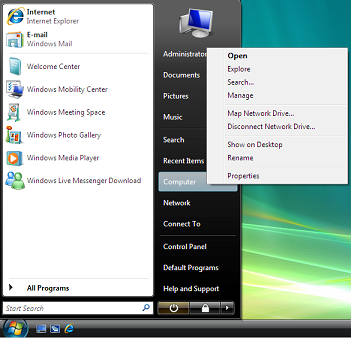
Step 1: Click on the “Start” menu. Right click “Computer” and click “Properties”.
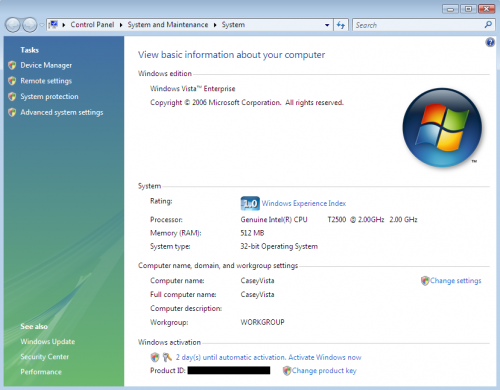
Step 2: A system information window will come up. At the bottom, you will see your Product ID. Click “Change Product Key”.
Step 3: Enter your new product key and click “Next”.
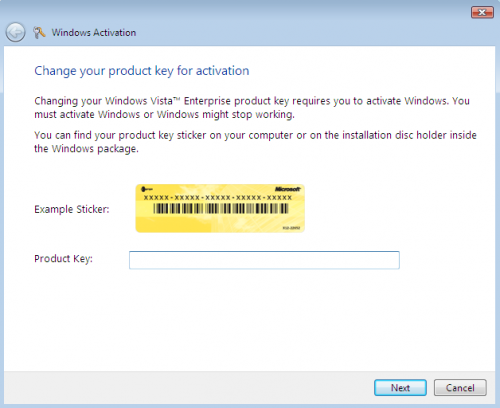
Step 4: Windows will now communicate with Microsoft to ensure that your product key is valid. If it is successful, you will see an “Activation Was Successful” message. You have now changed your Windows Vista product key.
Please feel free to share your your experiences.

9 Comments
ogunsakin oluwatoba
August 13, 2008hi please i just want to change my vista operating system to windows xp, but when i boot from my xp bootable cd and want to install xp it will tell me that there is no hard disk installed, please i need you help in this regard. The system is HP 530 notebook series.
Thanks.
TOBA.
Casey
August 15, 2008Hi Toba,
My first thought was that maybe you have a SCSI hard drive but since it is a notebook that wouldn’t be the case. So I’m afraid that without looking at it, I’m not sure what else to try.
Todd
August 17, 2008For Toba,
You need to download the SATA drivers from HP’s website and run the utility to put it on a floppy disk. Connect a USB floppy drive to your laptop and when you begin to load the Windows XP install press F6 when it prompts you to load the SATA drivers. Windows XP does not have SATA drivers built in but Vista does.
Keep in mind, if your computer came with Vista preinstalled, you may void your warranty if you put XP on it. HP will only support the warranty if it is in its original configuration. Also, it is a pain to loacate all of the device drivers since they are not on HP’s website. You will also not have any of the pre-installed applications such as DVD / CD burning software and a DVD decoder.THis means that you will not be able to play DVD movies unless you install a DVD decoder such as WinDVD or Cyberlink. Good luck.
banana.beach
June 19, 2009Thanks a lot for this great tool.
Fuad
November 6, 2009You said: “Type in your new valid product key and click “ChangeKEY”. But, you did not mentioned if the new product key is only guessing or I can get it from MS!
If it would be only guessing, I afraid it takes me long to guess! What is your recommendation?
Thank you in advance,
Casey
November 9, 2009Hi Faud,
This utility will only work if you have a valid Product Key which would have to come from Microsoft.
Fuad
November 10, 2009Thank you Casey for the clarification.
God bless 🙂
Casey
November 10, 2009No problem 🙂
sweetsugafre
June 15, 2010okay i have looked but never found a program that does or will find, get, a MS Windows Cd Key From The Windows OS setup Disk!!
HAVE YOU??????
Leave A Response